
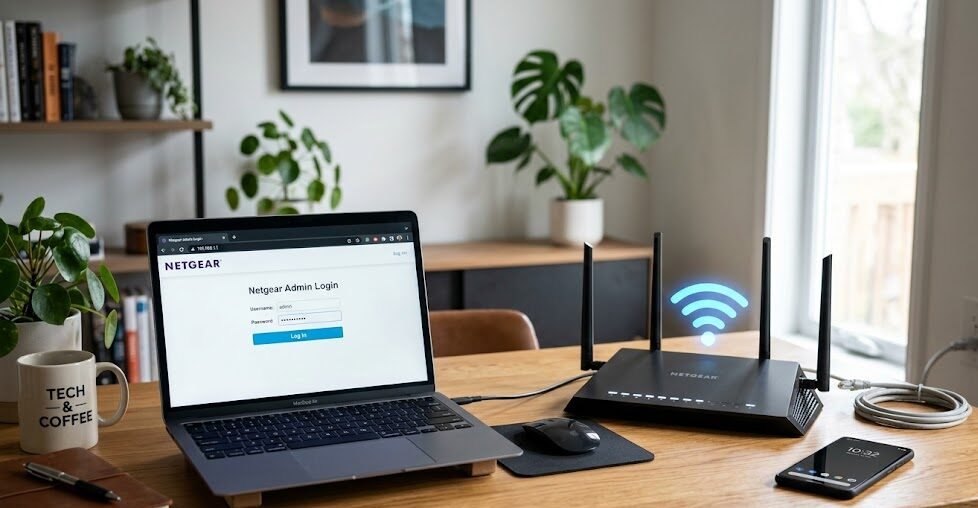
If you have ever needed to change your Wi-Fi password, improve your internet speed, secure your home network, or fix a connection issue, chances are you have seen the address 192.168.1.1. This small set of numbers plays a much bigger role than most people realize. It is one of the most common router login addresses used by home and small office networks, and it gives you access to the admin panel where you can manage your router settings. For many users, this is the gateway to better control, stronger security, and a smoother online experience.
Understanding 192.168.1.1 is important because it helps you take charge of your internet connection instead of relying only on default settings. Most people use their router every day without ever opening the admin page, but the moment something goes wrong, that login becomes essential. Whether you are trying to update your Wi-Fi name, create a guest network, set parental controls, check connected devices, or troubleshoot slow internet, the router admin panel is where the real control happens. In this guide, you will learn what 192.168.1.1 means, how to log in, what to do if it does not work, and how to use the admin panel safely and effectively.
What Is 192.168.1.1 and Why Does It Matter?
The address 192.168.1.1 is a private IP address used by many router brands as the default gateway. In simple words, it is the address your router uses on your local network so that you can open its settings page from a browser. This address is not used to browse the public internet. Instead, it acts like a private door into your router’s control room. Once you enter that address in a browser, you can access administrative tools that let you manage how your internet connection works.
This matters because your router is the center of your home network. Every phone, laptop, smart TV, game console, printer, and smart device connected to your Wi-Fi depends on it. If your router settings are poorly configured, your internet may become slow, insecure, or unstable. If your network is properly managed, you can improve coverage, prevent unauthorized access, and make sure each device is getting the right type of connection. That is why learning about 192.168.1.1 login admin can be one of the most useful things for any internet user.
How to Access the 192.168.1.1 Login Page
Logging into the router admin page is usually simple, but it must be done carefully. First, make sure your device is connected to the router’s network through Wi-Fi or Ethernet. Without being on the same network, the login page will usually not open. Next, open a browser such as Chrome, Edge, Safari, or Firefox and type 192.168.1.1 directly into the address bar. Do not type it into a search engine, because that may take you to search results instead of the login page.
After entering the address, press Enter. If the router is using that IP address as its default gateway, you should see a login screen asking for a username and password. In many cases, the router label contains the default login details, or the information is printed in the manual. Some routers use combinations like “admin” for both username and password, but this is not universal and should never be assumed without checking the device information. Once you enter the correct credentials, you will gain access to the admin panel.
If the page does not load, the router may be using a different IP address. In that case, the device may be assigned another gateway address such as 192.168.0.1, 10.0.0.1, or a custom address set by the internet provider. You can usually find the correct gateway through your device’s network settings. On a Windows computer, the default gateway appears in network details. On a phone, it is usually listed inside the Wi-Fi information screen. This small step often solves the problem immediately.
Why Users Need Router Admin Access
Router admin access is useful because it gives you direct control over features that affect your daily internet use. Many people only log in when they need to change the Wi-Fi password, but the admin panel can do much more. You can rename your network so it is easier to recognize, enable encryption settings for stronger security, view which devices are connected, limit certain devices, and even improve performance by changing channel settings or reboot schedules.
For families, the admin panel can help manage internet access for children by setting timers or content controls. For small businesses, it can help keep the network organized and secure. For gamers and streamers, it can help with latency issues, bandwidth priorities, and stable performance. For anyone dealing with a weak signal, the admin page can be the starting point for troubleshooting. In other words, the router login is not just for technicians. It is a practical tool for everyday users who want a better internet experience.
Common Problems When Logging into 192.168.1.1
Even though the login process sounds easy, users often run into small problems that prevent access. One common issue is typing the address into a search bar instead of the browser’s address bar. Another issue is using the wrong IP address because the router has a different default gateway. Sometimes the browser caches an old page, or the router is temporarily frozen and needs a restart. In other cases, the username or password may have been changed earlier and forgotten later.
A weak or unstable connection can also cause trouble. If your device is not properly connected to the router, the login page may fail to appear. Some people also confuse the internet modem with the router, even though they are separate devices in many setups. If the router has been reset, the login credentials may have returned to the factory defaults. And if the device was supplied by an internet service provider, the provider may have customized the login details or restricted certain options. These problems are common, but most of them can be fixed with a few simple checks.
What to Do If 192.168.1.1 Does Not Open
When 192.168.1.1 does not open, the first thing to do is confirm that your device is connected to the router you want to manage. Then check whether the address is being typed correctly. A single wrong digit can send you nowhere. Also, remember that the login page may be slow to load if the router is busy or if the connection is weak. Waiting a few seconds or refreshing the page can sometimes help.
If the page still does not load, restart the router. Power it off, wait a short time, and turn it back on. This can clear temporary issues that block access. You should also check the router label, because many devices print the correct login address right on the hardware. If that still does not work, check your device’s network details and look for the default gateway. That gateway is the exact IP address you should use. In many cases, the router is simply not using 192.168.1.1, and finding the correct address solves the issue immediately.
How to Find the Default Username and Password
One of the most frustrating parts of router login is forgotten credentials. The good news is that many routers have the default username and password printed on a sticker attached to the back or bottom of the device. This label may also include the Wi-Fi network name, serial number, and admin access information. If the router is brand new or has never been changed, these details usually work.
If the credentials were changed in the past and no one remembers them, you may need to reset the router to factory settings. This should be done carefully because it can erase custom settings such as Wi-Fi name, password, port forwarding rules, and parental controls. A reset is usually done with a small pinhole button on the router that must be held for several seconds. After the reset, you can log in again with the default details and reconfigure the device. This may sound inconvenient, but it often restores access when nothing else works.
Important Settings You Can Change After Logging In
Once you enter the admin panel through 192.168.1.1, you may see a wide range of settings. One of the most important is the Wi-Fi network name, also called the SSID. A custom name makes it easier to identify your network and can even make it look more secure. Another essential setting is the Wi-Fi password. Changing it regularly can help keep unwanted users off your network.
Security options are also important. Your router may allow you to choose between different encryption methods, and stronger encryption should always be used when available. You may also be able to disable features you do not use, such as remote management, if you want to reduce risk. Other useful settings include guest networks for visitors, device blocking, firmware updates, parental controls, and bandwidth allocation. These features make the router more than just a connection device; they turn it into a powerful network management tool.
How to Improve Wi-Fi Security Through the Admin Panel
Security should be one of the first things you check after logging into 192.168.1.1. Many routers ship with weak default passwords or easy-to-guess usernames, which makes them vulnerable if left unchanged. The first step is to replace the default admin password with a strong one. A strong password should be unique, long, and difficult to guess. It should not include obvious words like your name, address, or Wi-Fi name.
Next, make sure your Wi-Fi is using a secure encryption standard. This helps protect your data from unauthorized access. You should also turn off remote admin access if you do not need it, because leaving it open can create unnecessary risk. Another smart move is to review the list of connected devices from time to time. If you see unfamiliar devices, you can investigate further or change your Wi-Fi password. These simple habits can dramatically improve the safety of your network and make your internet usage more secure.
Why Router Firmware Updates Matter
A router’s firmware is the internal software that controls how it works. Just like your phone or laptop needs updates, your router also benefits from firmware updates. Many users ignore this area, but outdated firmware can create performance issues and security weaknesses. Logging into 192.168.1.1 gives you a chance to check whether an update is available.
Firmware updates may improve stability, fix bugs, enhance speed, and close security gaps. Some routers update automatically, while others require manual approval. Before starting an update, it is wise to make sure the router has stable power and that you do not interrupt the process. A failed update can cause problems, although most modern routers handle this smoothly. Keeping firmware current is one of the easiest ways to make your network more reliable over time.
How 192.168.1.1 Helps With Troubleshooting
When internet problems happen, many users blame the service provider first, but the router may be the real source of the issue. That is why 192.168.1.1 is so valuable. Inside the admin panel, you can check whether devices are connected properly, whether the signal is strong, and whether the router has been overloaded. You can also reboot the router from the settings page instead of unplugging it manually.
If certain rooms in the house have weak Wi-Fi, the router settings may help you identify a better channel or improve the signal layout. If your internet is working on some devices but not others, the list of connected devices can help you isolate the problem. If the network feels slow at night, you may be able to see whether several devices are consuming bandwidth at the same time. This type of troubleshooting saves time and gives you more control over the situation.
Using 192.168.1.1 for Better Performance
Performance is another major reason people log into the router admin page. A router that is badly configured can make a fast internet plan feel slow and frustrating. Through the 192.168.1.1 panel, you may be able to change wireless channels, adjust bandwidth settings, or prioritize certain devices. These changes can make a noticeable difference, especially in busy homes with multiple connected devices.
For example, if your Wi-Fi is crowded because many nearby networks are using the same channel, changing the channel can reduce interference. If you stream video or work from home, you may want to place those devices on a more stable connection. Some routers also allow you to separate 2.4 GHz and 5 GHz networks, which helps devices connect in the best possible way. Even small adjustments can lead to smoother browsing, faster downloads, and fewer interruptions.
The Difference Between 192.168.1.1 and Other Router IPs
Although 192.168.1.1 is extremely common, it is not the only router login address in use. Other routers may use 192.168.0.1, 10.0.0.1, or a custom local gateway. The reason for this difference is that routers are built by different manufacturers and configured in different ways. Some internet service providers also assign their own login addresses.
This means that if 192.168.1.1 does not open, it does not necessarily mean something is broken. It may simply mean your router uses another private address. This is why checking the label or network settings is so important. Once you know the correct address, the rest of the login process becomes straightforward. For users who manage networks regularly, learning to identify the correct gateway quickly is a very useful skill.
Best Practices for Managing Your Router Admin Account
Good router management is not just about logging in once. It is about keeping the account secure and the settings organized over time. One of the best habits is to change the default admin password as soon as possible. Another smart practice is to save your login details in a secure place so you are not locked out later. You should also avoid sharing admin access unless it is truly necessary.
It is wise to review your settings every so often, especially after a service change, a new router installation, or a network issue. Make sure the guest network is turned on only when you need it. Check for unknown devices. Review security settings after major updates. Keep the router in a central place if possible for better coverage. These habits may sound simple, but they create a stronger and more reliable home network over time.
How to Reset a Router Safely
Sometimes the only way to regain access to 192.168.1.1 is to reset the router. This should be your last option because it returns the device to factory settings. Before doing it, make sure you understand that your custom Wi-Fi name, password, and advanced settings may be erased. If your internet service provider gave you specific settings, you may need those again after the reset.
A reset is usually performed using a small recessed button on the back or bottom of the router. It is often pressed with a paperclip or pin and held for several seconds until the lights blink or the router restarts. After the reset, the router will return to its original configuration. You can then log in with the default credentials and set everything up again. Although this can take a little time, it is often the simplest solution when credentials are lost or settings have become corrupted.
Common Mistakes to Avoid
Many login problems happen because of small mistakes that are easy to avoid. One common mistake is assuming that every router uses 192.168.1.1. Another is typing the IP address into the wrong part of the browser. Some users forget that the router must be connected and powered on. Others try to log in using old credentials after the password has already been changed.
A different mistake is changing settings without understanding what they do. This can create more problems than it solves. It is always better to make one change at a time and note what you did. That way, if something goes wrong, you can reverse the change. Another common issue is ignoring security updates and default passwords. These shortcuts may seem harmless at first, but they can lead to serious problems later. Taking a careful approach is the best way to manage your network with confidence.
Why Beginners Should Learn the Basics of 192.168.1.1
Even if you are not a technical person, learning the basics of 192.168.1.1 is worth the effort. It gives you independence and helps you solve everyday internet problems without waiting for support. You do not need to become a network engineer to benefit from the admin panel. You only need to understand a few essential actions, such as logging in, checking credentials, changing the Wi-Fi password, and reviewing connected devices.
This kind of knowledge is practical and empowering. It can save time, improve your internet experience, and reduce frustration when issues come up. In many households, one person becomes the “tech helper” simply because they know how to open the router settings. Once you understand the basics, you can be that person too. And the more comfortable you become with the admin page, the easier it is to keep your network secure and efficient.
Frequently Asked Questions About 192.168.1.1
Many users ask whether 192.168.1.1 is safe to type into a browser. The answer is yes, because it is a private local address used only inside your own network. Others ask whether they can access the page from outside the home. In most cases, the answer is no unless remote access is intentionally enabled, and that is not recommended for average users. Another common question is whether every router uses the same login details. It does not. Usernames and passwords vary by brand and may be changed by the owner or internet provider.
People also wonder why the login page asks for credentials even when the Wi-Fi is connected. That is because admin access is different from normal internet access. Being connected to Wi-Fi does not automatically give you permission to change router settings. The login screen is there to protect the network from unwanted changes. These questions come up often, and understanding the answers helps users feel more confident when managing their routers.
Final Thoughts: Take Control of Your Network Today
The 192.168.1.1 login admin page is more than just a technical screen. It is the place where you control your home network, protect your devices, and improve your internet performance. Once you know how to access it, you unlock a wide range of tools that can help you manage your Wi-Fi with confidence. From changing your password to checking connected devices and improving security, the admin panel gives you real power over your connection.
If your internet has ever felt slow, unsecured, or difficult to manage, the answer may already be waiting inside your router settings. Take a few minutes to log in, review your current setup, and make the changes that matter most. A well-managed router can make everyday browsing smoother, safer, and more reliable. Do not leave your network on autopilot when a few smart adjustments can make such a big difference. Open 192.168.1.1, explore the settings, and start building a better internet experience today.