
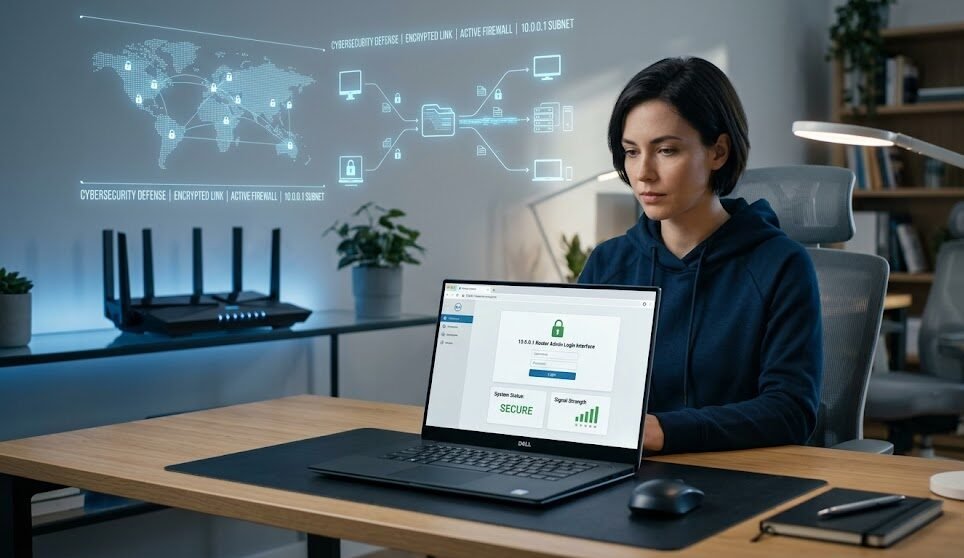
Accessing your router settings is one of the most important steps in managing your home or office internet connection, yet many users still struggle to understand how it actually works. If you have ever tried to change your Wi-Fi password, improve internet speed, or fix connectivity issues, you have likely come across the IP address 10.0.0.1 or sometimes 192.168.1.1. These are gateway addresses that allow you to enter your router’s admin panel and control advanced network settings. In this comprehensive guide, you will learn everything about logging in using 10.0.0.1, how it compares with 192.168.1.1, how to fix common login issues, and how to secure your network like a professional.
10.0.0.1 Login: The Complete Gateway to Your Router Settings
The IP address 10.0.0.1 is commonly used as a default gateway for many modern routers and modems. It acts as a private access point that allows users to configure their internet settings through a web browser. When you type http://10.0.0.1 into your browser, you are not accessing the internet itself but instead connecting directly to your router’s internal control panel.
Routers from major networking companies such as TP-Link, Netgear, Arris, and Comcast Xfinity gateways often use 10.0.0.1 as their default IP address. Once logged in, users can manage Wi-Fi passwords, adjust security settings, configure parental controls, and even monitor connected devices.
This makes 10.0.0.1 extremely important for anyone who wants full control over their internet connection rather than relying on default factory settings.
When you understand how this login system works, you gain the ability to troubleshoot internet issues on your own without depending on technical support. That is why learning about 10.0.0.1 login access is essential for both beginners and advanced users.
Why 10.0.0.1 and 192.168.1.1 Are So Important in Networking
Both 10.0.0.1 and 192.168.1.1 are private IP addresses used as default gateways. While they serve the same purpose, different router manufacturers choose different defaults based on their network architecture.
The IP address 192.168.1.1 is one of the most widely used router login addresses globally. It is often found in older or more traditional routers, while 10.0.0.1 is frequently used in modern broadband systems and ISP-provided routers.
Despite their differences, both addresses perform the same function: they provide a secure entry point into your router’s configuration system. Without these IPs, users would not be able to customize network settings or secure their Wi-Fi connections.
Understanding the difference between these two IP addresses is essential because entering the wrong one can prevent you from accessing your router dashboard.
How to Login Using 10.0.0.1 Step-by-Step
Logging into your router using 10.0.0.1 is simple when you follow the correct procedure. First, ensure that your device is connected to the router either through Wi-Fi or an Ethernet cable. Without an active connection, the login page will not load.
Next, open any web browser such as Chrome, Firefox, or Edge. In the address bar, carefully type http://10.0.0.1 and press enter. If your router uses this IP address as its default gateway, you will see a login page appear.
This page usually asks for a username and password. These credentials are often printed on the back of your router or provided by your internet service provider. In many cases, the default username is “admin” and the password is also “admin” or “password,” although this can vary depending on the device.
Once you successfully log in, you will gain access to the router dashboard. From here, you can change your Wi-Fi name (SSID), update your password, manage security settings, and even prioritize devices for better speed distribution.
What You Can Do Inside the 10.0.0.1 Admin Panel
After accessing the admin panel through 10.0.0.1, you unlock a powerful set of tools that control your entire network. One of the most commonly used features is Wi-Fi customization. You can change your network name to something recognizable and set a strong password to prevent unauthorized access.
Another important feature is device management. The admin panel allows you to see all devices connected to your network. If you notice unknown devices, you can instantly block them to protect your bandwidth and security.
You can also configure parental controls, which are especially useful for families. This feature lets you restrict access to certain websites or set time limits for internet usage.
Advanced users can explore features like port forwarding, DHCP settings, and firewall configurations. These settings are especially useful for gaming, streaming, or running home servers.
All these options make 10.0.0.1 login access a powerful tool for controlling and optimizing your internet experience.
Common Problems When Accessing 10.0.0.1
Many users face issues when trying to open the 10.0.0.1 login page, and these problems are usually easy to fix. One of the most common issues is entering the wrong IP address. Even a small typo like 10.0.0.l instead of 10.0.0.1 can prevent access.
Another common issue is network disconnection. If your device is not properly connected to the router, the login page will not load. Always ensure your Wi-Fi or Ethernet connection is active before attempting to log in.
Sometimes the browser cache can also cause problems. Clearing your browser history or switching to another browser often solves this issue.
If the login page still does not open, your router may be using a different default gateway such as 192.168.1.1. Trying both addresses usually resolves the problem.
10.0.0.1 vs 192.168.1.1: Which One Should You Use?
The choice between 10.0.0.1 and 192.168.1.1 depends entirely on your router configuration. You do not manually choose which one to use; instead, your router is pre-configured by the manufacturer or internet service provider.
For example, many routers from Netgear use 192.168.1.1, while ISP-provided modems often use 10.0.0.1. Both work the same way, but only one will be active on your system.
If you are unsure which one applies to your router, you can check the back label of your device or refer to the user manual. You can also use the command prompt on Windows by typing “ipconfig” and looking for the default gateway.
Understanding this difference helps you avoid confusion and ensures faster access to your router settings.
How to Secure Your Router After Logging in
Once you successfully access 10.0.0.1, security should be your top priority. Many users make the mistake of keeping default login credentials, which makes their network vulnerable to unauthorized access.
The first step is to change your admin username and password. Choose a strong password that includes letters, numbers, and symbols. Avoid using simple passwords like “admin123” or “password.”
Next, update your Wi-Fi password and enable WPA3 or WPA2 encryption if available. This ensures that your wireless network is protected from hackers and unauthorized users.
You should also disable remote management unless absolutely necessary. This feature allows access to your router from outside your home network, which can be a security risk if not properly secured.
By taking these steps, you significantly improve the safety of your internet connection.
Speed Optimization Tips Inside 10.0.0.1 Settings
One of the biggest advantages of accessing your router via 10.0.0.1 is the ability to improve internet speed. Many users do not realize that their router settings directly affect performance.
You can start by selecting the best Wi-Fi channel. In crowded areas, multiple networks often interfere with each other, slowing down your connection. Changing the channel can improve stability and speed.
Another useful feature is Quality of Service (QoS), which allows you to prioritize bandwidth for specific devices like gaming consoles or streaming devices. This ensures smoother performance even when multiple devices are connected.
You can also update your router firmware regularly. Manufacturers like TP-Link and Netgear frequently release updates that improve performance and security.
Advanced Router Settings You Should Know
For advanced users, the 10.0.0.1 admin panel offers deeper control over your network. Features like port forwarding allow you to connect external services to your home network, which is useful for gaming servers or remote access applications.
Firewall settings help protect your network from unwanted traffic and cyber threats. You can also configure static IP addresses for devices that require consistent connectivity.
Another advanced feature is guest network setup, which allows you to create a separate Wi-Fi network for visitors. This keeps your main network secure while still offering internet access to guests.
These features show how powerful router administration can be when properly understood and used.
Final Thoughts on 10.0.0.1 Router Login
Accessing your router through 10.0.0.1 is one of the most effective ways to take full control of your internet connection. Whether you are using it for basic tasks like changing your Wi-Fi password or advanced configurations like port forwarding and QoS setup, this gateway gives you complete authority over your network.
Understanding the difference between 10.0.0.1 and 192.168.1.1 ensures that you never get locked out of your router settings. With proper security measures and optimization techniques, you can significantly improve both speed and safety.
If you want a faster, more secure, and more stable internet experience, learning how to use your router admin panel is essential.
Call to Action (CTA)
If this guide helped you understand how to log in using 10.0.0.1, take the next step and check your router settings right now. Secure your Wi-Fi, change your password, and optimize your network for better performance today. For more in-depth networking guides, troubleshooting tutorials, and SEO-friendly tech articles, stay connected and explore more content on our platform. Your faster, safer internet experience starts with one simple login—don’t wait, take control now!